


RMX-95
Configuration
Connections
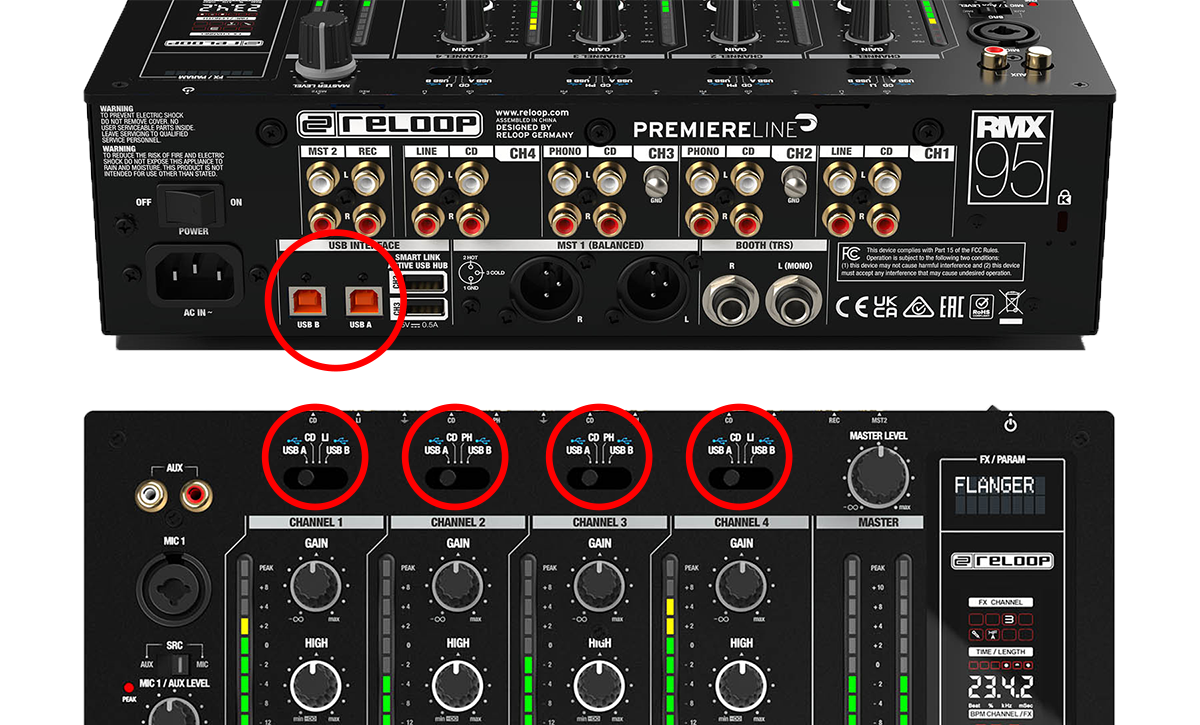
- Connect your computer to USB port A or B at the rear panel of Reloop RMX-95
- Set the SOURCE selectors at the top panel for all Mixer Channels to the USB position A or B depending on the port you have used to connect with your computer.
- Connect your amplifier/speakers to the Master Out sockets at the rear panel.
- Connect the Reloop RMX-95 with AC power using the provided cable and power on the unit
Firmware & Drivers
Firmware: (for both Windows and Mac OSX computers). At the time this manual is written, no update for the firmware is available, but you should also check the product's official page for any updates at https://www.reloop.com/reloop-rmx-95
Windows Drivers : Install the latest Reloop ASIO drivers from https://www.reloop.com/reloop-rmx-95
Mac OS Drivers : No driver is required to be installed.
VirtualDJ 8 Setup
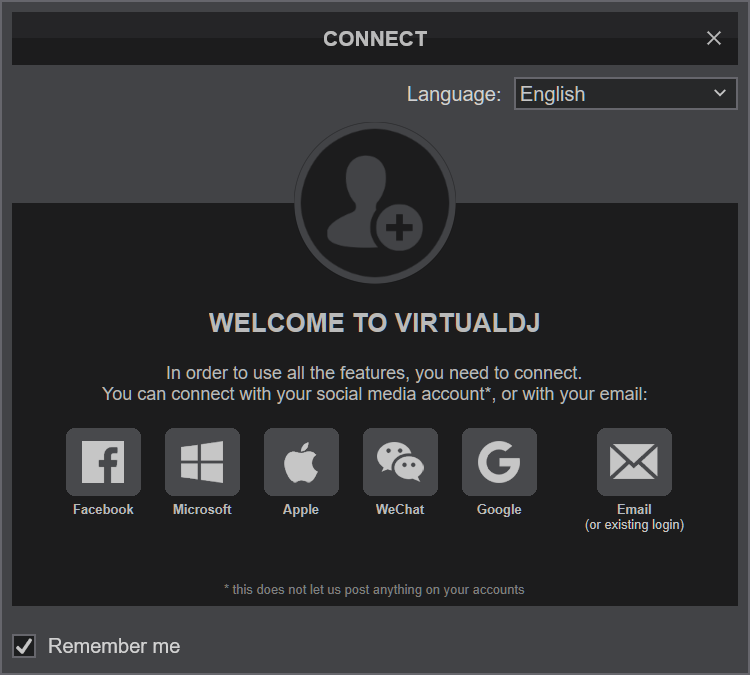
Once VirtualDJ is opened, a Login Window will appear. Login with your account credentials.
A Pro Infinity or a Pro Subscription License is required to use the Reloop RMX-95. Without any of the above Licenses, the mixer will operate for 10 minutes each time you restart VirtualDJ.
https://virtualdj.com/buy/
Click on the “RMX-95” button and VirtualDJ will automatically create and apply the default audio configuration using the built-in audio interface of the Reloop RMX-95
Click to OK.
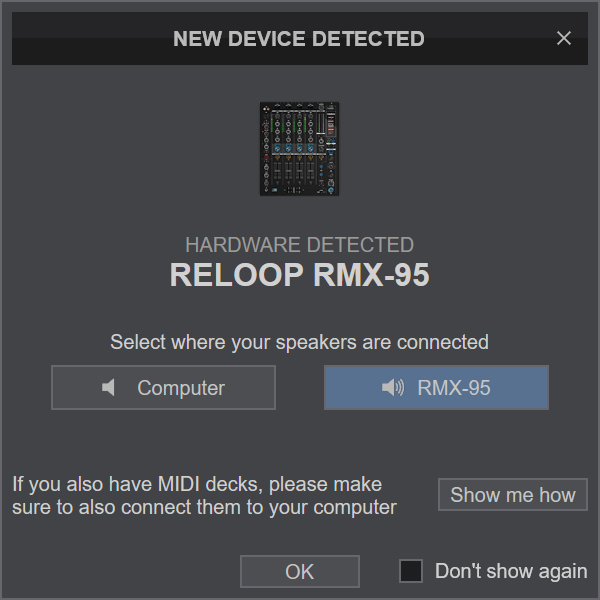
The device is now ready to operate with VirtualDJ.
MIDI Operation
The device should be visible in the MAPPING tab of Config and the “factory default” available/selected from the Mappings drop-down list.
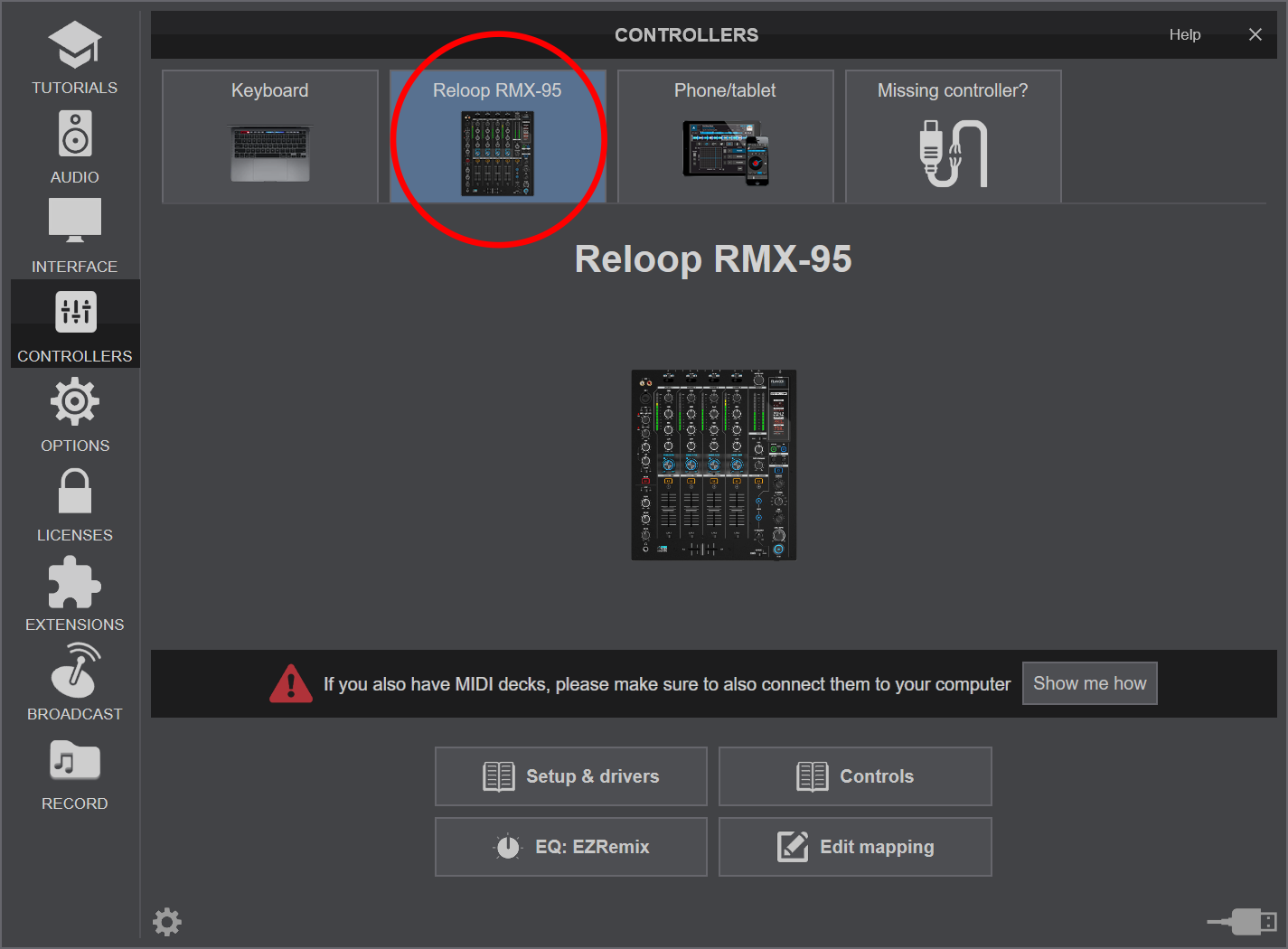
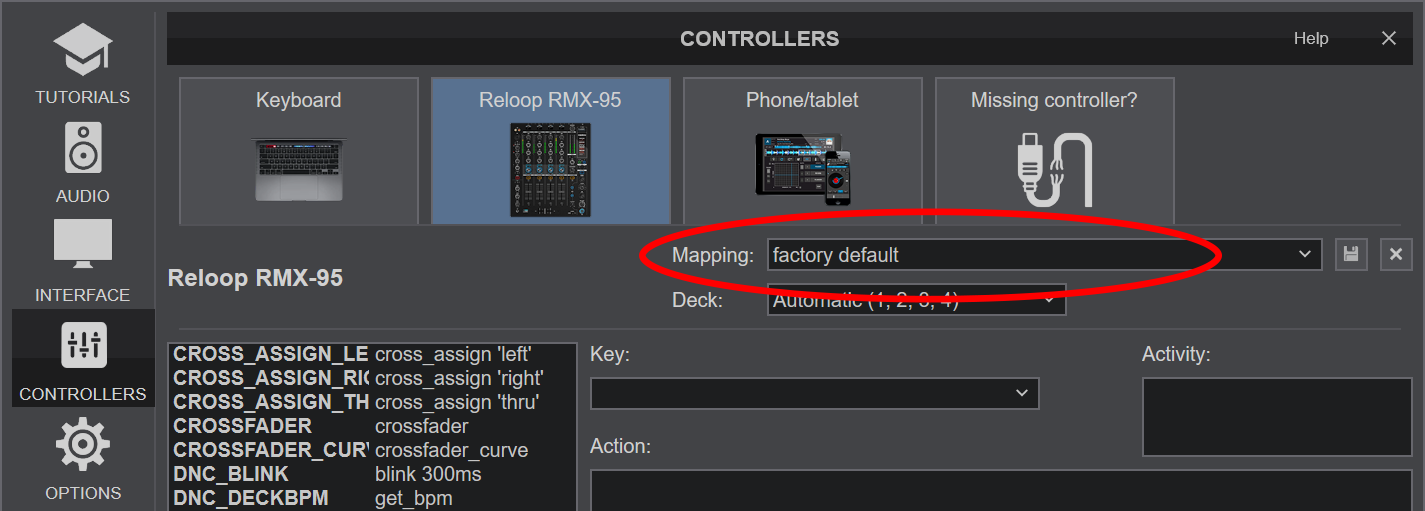
Note, that nearly all buttons, knobs and faders of the RMX-95 offer hardware/firmware/internal functionality, thus it is highly recommenced not to change the assigned actions, as the hardware functionality will still apply. Some of the device's keys are pre-mapped to "fake" mode actions, just as a mixing aid (show status on the GUI).
AUDIO Setup
The unit has a pre-defined Audio setup and a special button in the AUDIO tab of Config to provide that. Alternative setups can be applied in the same window. See Advanced Setup
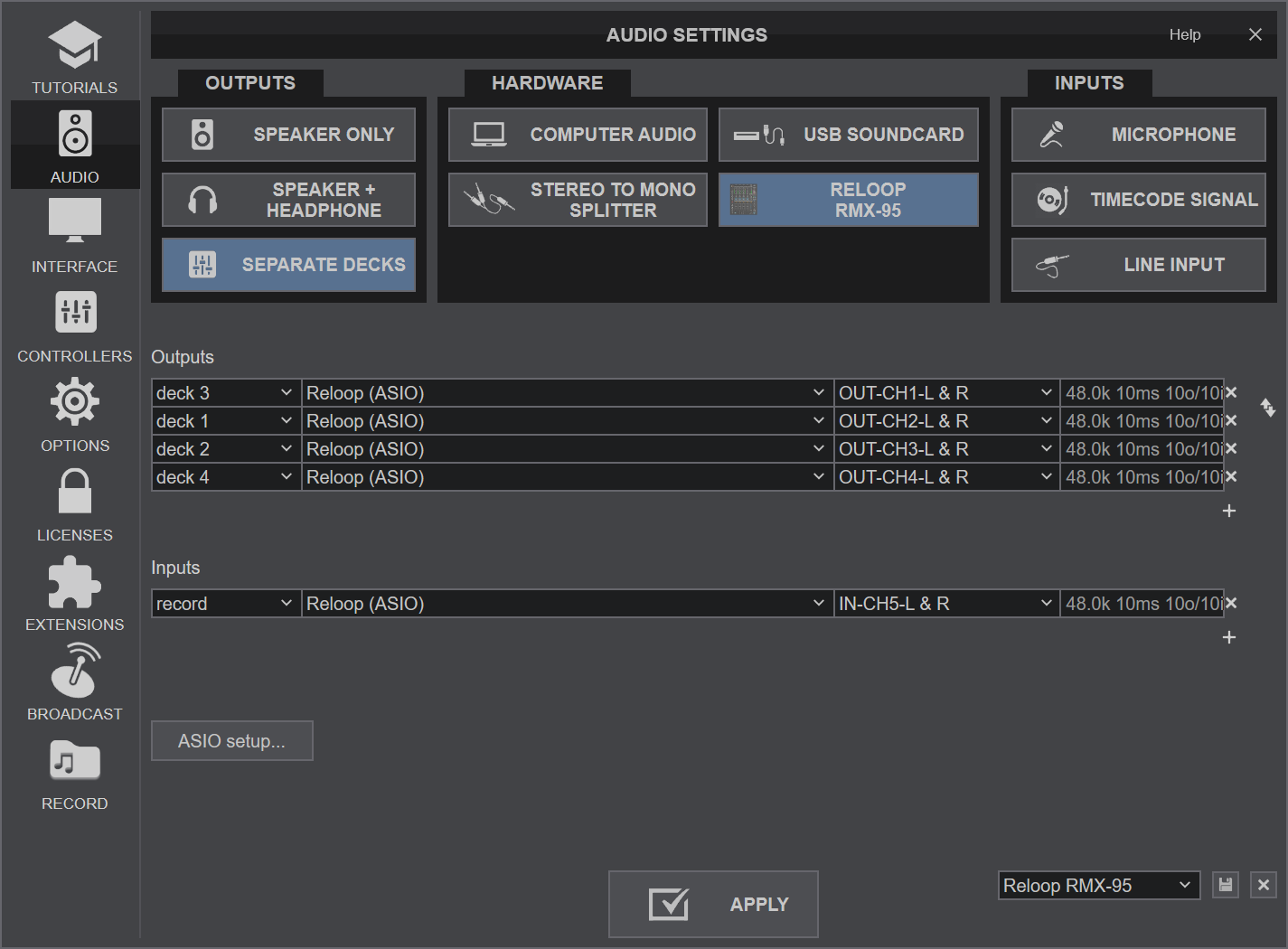
For further software settings please refer to the User Guide of VirtualDJ.
https://virtualdj.com/manuals/virtualdj.html